
SafeCadence Command
One calm view for every public-safety decision.
Police, fire, EMS, dispatch, detention, EOC, IT, records, and leadership see what happened, what matters, who owns it, and which actions are safe to take.
Explore offline safety integrations: Frigate, Home Assistant, ThingsBoard and authorized brand evidence · Synthetic exports, not live monitoring.
Local-first by design
Security stays close to the data people are responsible for.
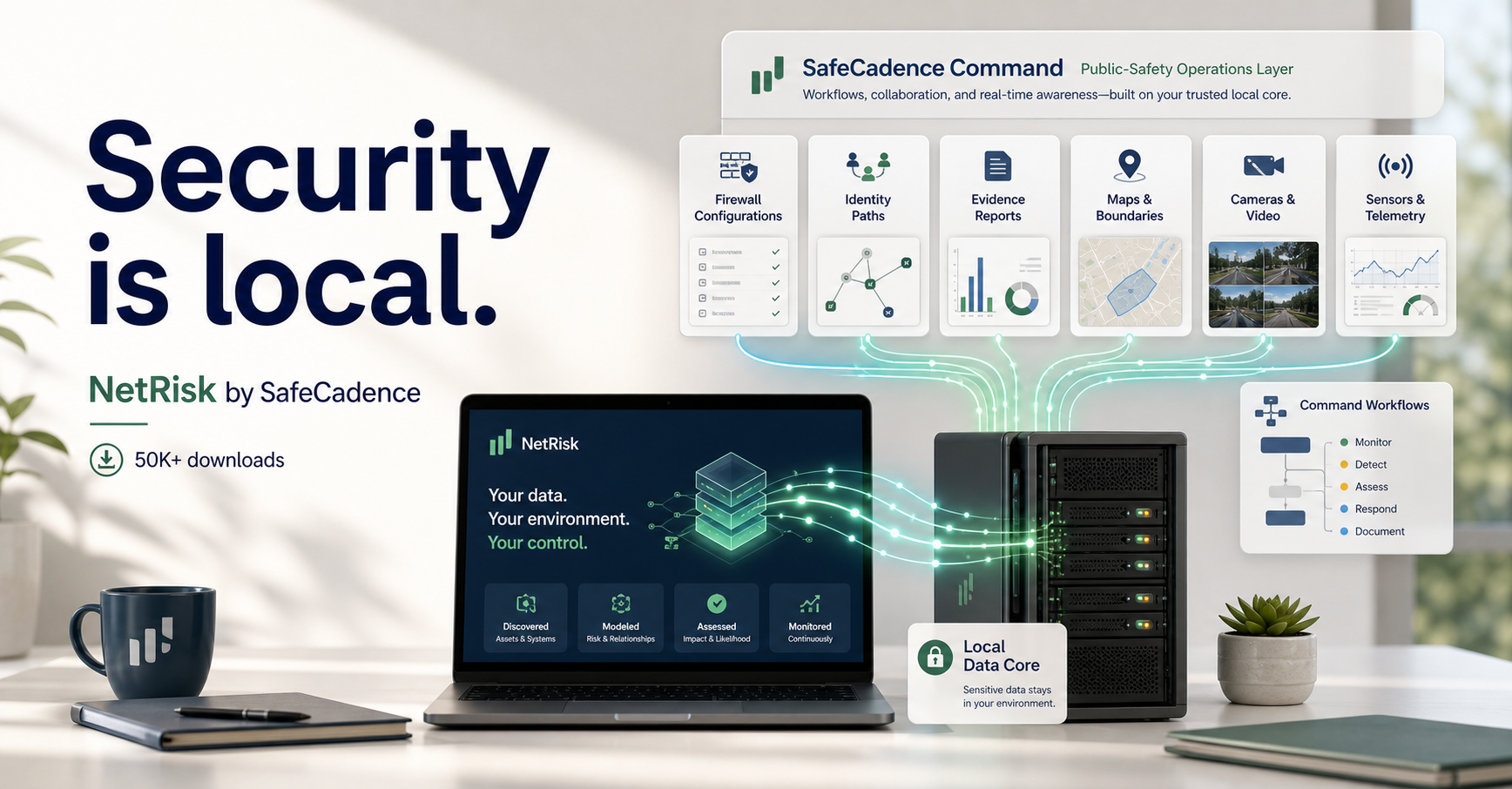
SafeCadence Command sits on top of NetRisk Core, a local evidence graph for configs, identities, assets, findings, reports, and audit history. The product can be evaluated with representative data now, then connected to live agency systems only after contract authorization, credentials, and policy review.
Incident Center
Manage incidents, investigations, resolution, outreach, reports, and prevention from one live desk.
Built on NetRisk Core with sample replay data now. CAD/RMS, AVL, cameras, radio summaries, Crime Stoppers tips, outreach referrals, and research forecasts can plug in after agency authorization.
Live Operations Map
Local tactical map with incident/unit overlay - rendered on-deviceOfficer / Unit Activity
Authorized status summaryIncidents
Clickable sample work queueIncident Center Action Log
Actions are audited and approval-gatedInvestigation Center
Put every case fact, recording, evidence item, scene note, and supervisor packet in one local-first case room.
Case work runs on NetRisk Core with production-shaped sample data now. CAD/RMS, evidence, media, Crime Stoppers, court/records, and authorized recording sources can plug in after agency approval.
Crime Scene Board
Evidence mapTimeline
CAD, media, evidence, and notesRecordings
Authorized review samplesEvidence Graph
Source relationshipsEvidence And Leads
Chain of custody and next stepsSimulations And Reports
Advisory analysis and packet exportsSupervisor Note
Investigation Action Log
Purpose logged and review-gatedMission Call Coach
Authorized transcript guidanceAI guidance for authorized public-safety calls.
Call Coach gives short approved prompts, policy checks, purpose-bound record lookups, supervisor escalation, and after-call QA while keeping people in charge.
Call Queue
Sample replay now, live transcript after authorizationTranscript Replay
Synthetic training callApproved Operator Script
Plain-English wordingActive Call
WaitingLive Guidance Cards
Short prompts onlyAuthorized Context
Purpose-bound recordsAfter-Call QA
Supervisor-readyAction Log
Audited sample actionsCurrent Mission
Plain-English operating pictureRecommended Next Actions
AI-assisted, human-approvedGuided Buyer Demo
10-minute public-safety walkthroughConfiguration & AI Center
What to configure, where AI helps, and what remains gatedSelect any card, row, risk, module, site, or feed
Click a non-button panel anywhere in the workspace to open configuration steps, sample map/camera/device context, AI guidance, and export links when that item has a report path.